- Open Safari on your Apple device and navigate to bid-euchre.com (MUST BE SAFARI)
-
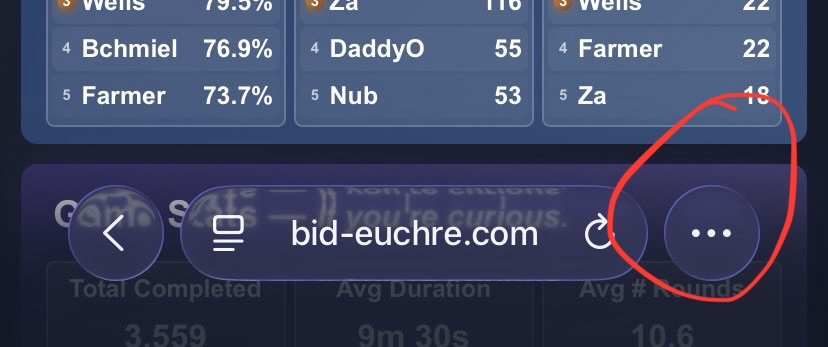
Tap the three dots in the bottom right corner. (On older iPhones, you can click the share button in the bottom center and skip the next step.)
-
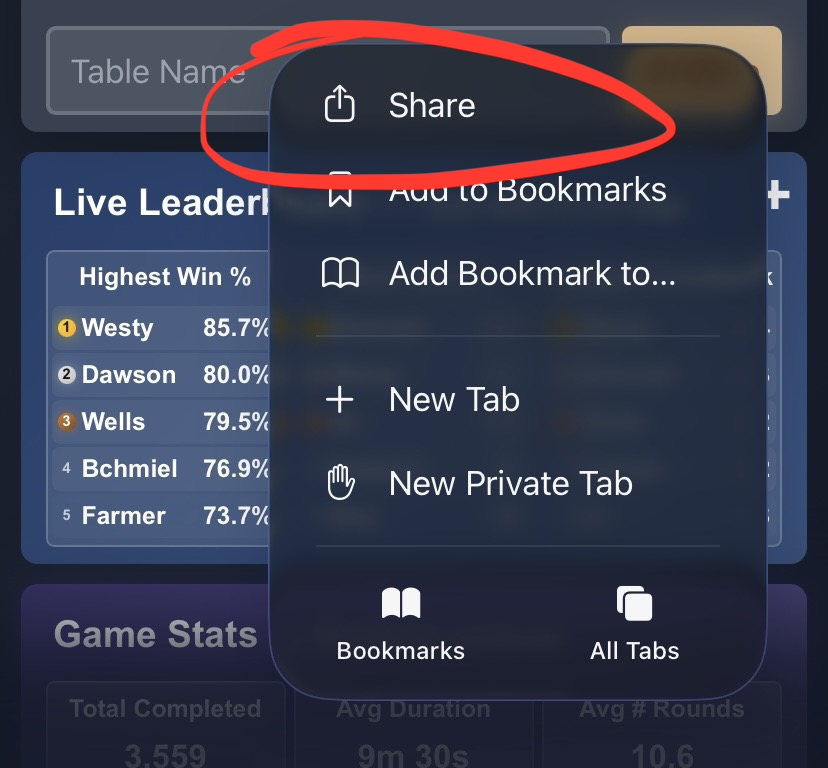
Tap the Share button within the popup.
-
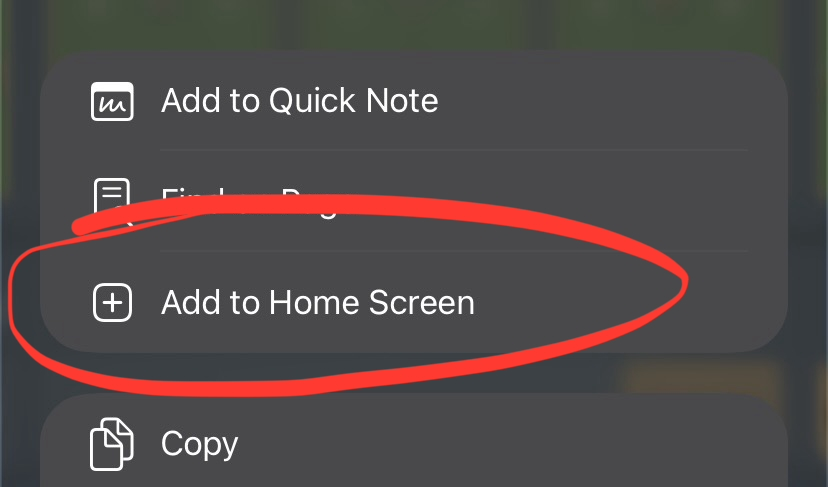
Scroll down in the share menu and tap "Add to Home Screen"
-
Tap "Add" in the top right corner.
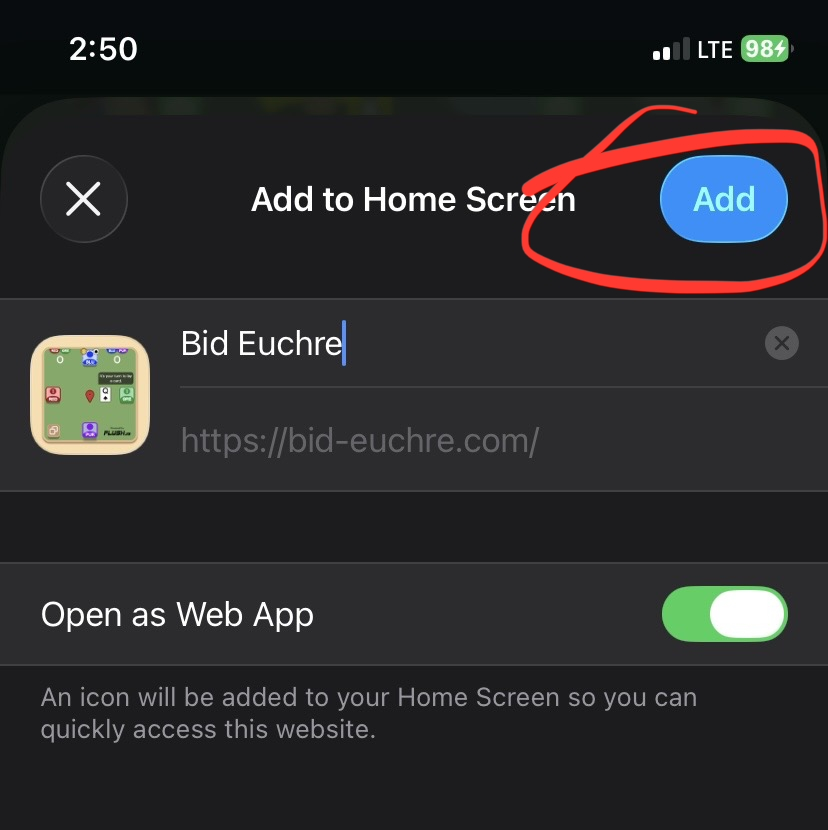
- The Bid Euchre app will now appear on your home screen. Tap it to launch!
- Open Chrome (or another Chromium-based browser like Edge) on your Android device and navigate to bid-euchre.com
- Tap the Menu button (three dots) in the top right corner of the browser.
- Look for and tap "Install app" or "Add to Home screen" in the menu.
- A popup will appear showing the app name "Bid Euchre" and the app icon. Review the permissions if shown, then tap "Install" or "Add".
- The Bid Euchre app icon will now appear on your home screen (and may also appear in your app drawer). Tap it to launch the app!